Quick start · Club · Basics · 3 min
Send an announcement
Club page, email, team feeds — or all three at once.
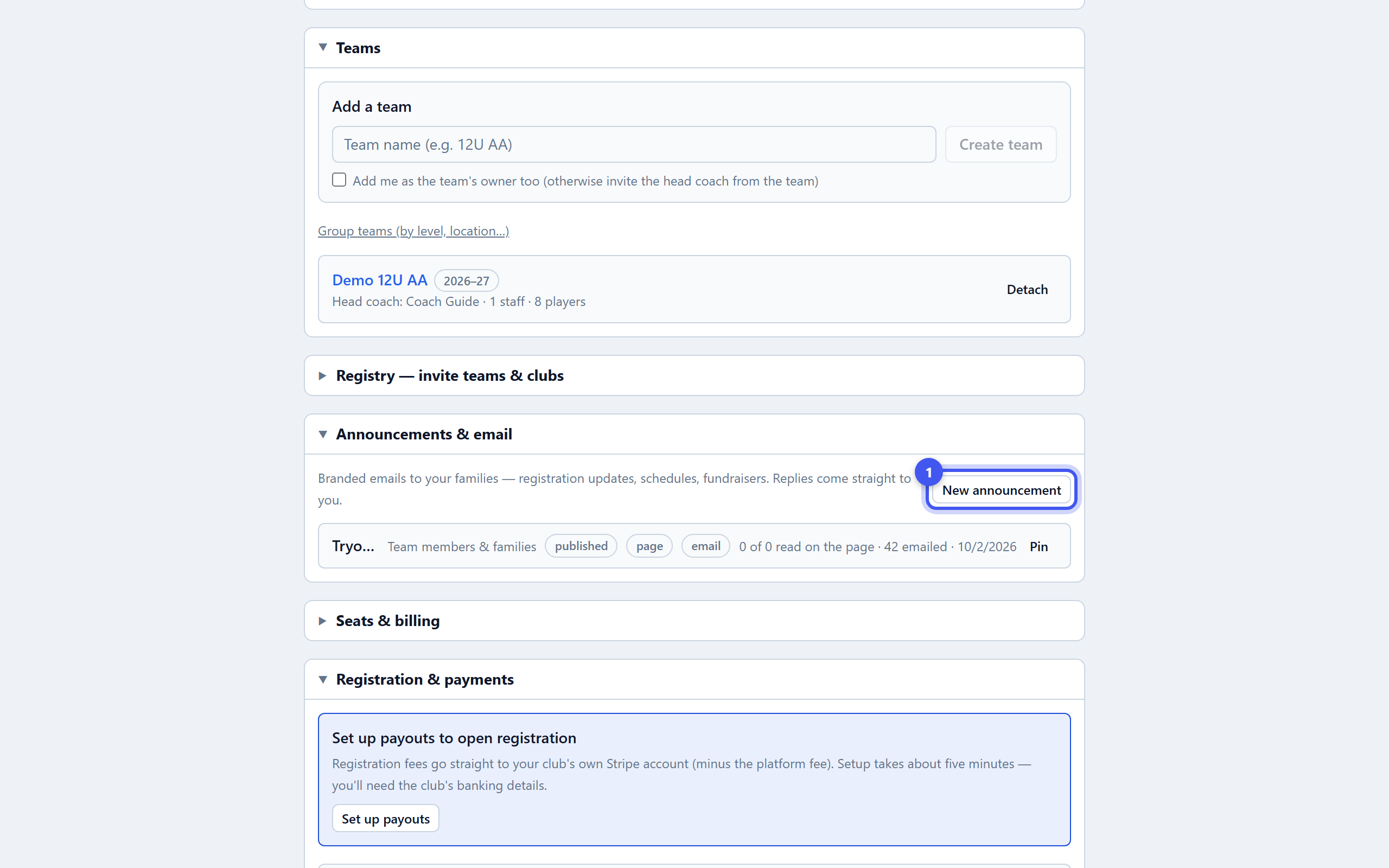
- 1Start one
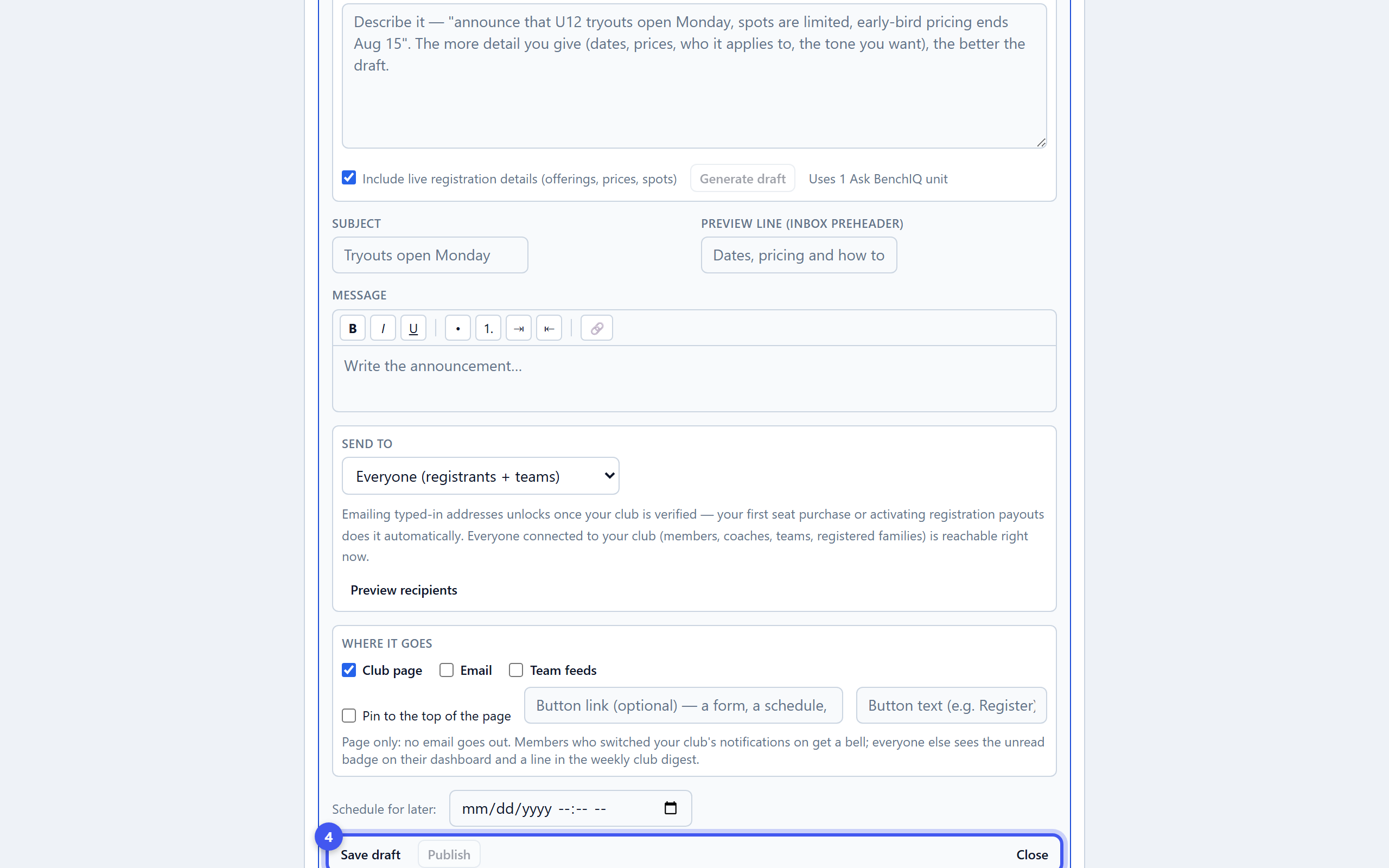
Console → Announcements & email → New announcement. Draft with AI writes it from a sentence — tryouts open Monday, early-bird ends Aug 15 — and can pull in live offering prices and spots. Edit the subject, preview line and message.
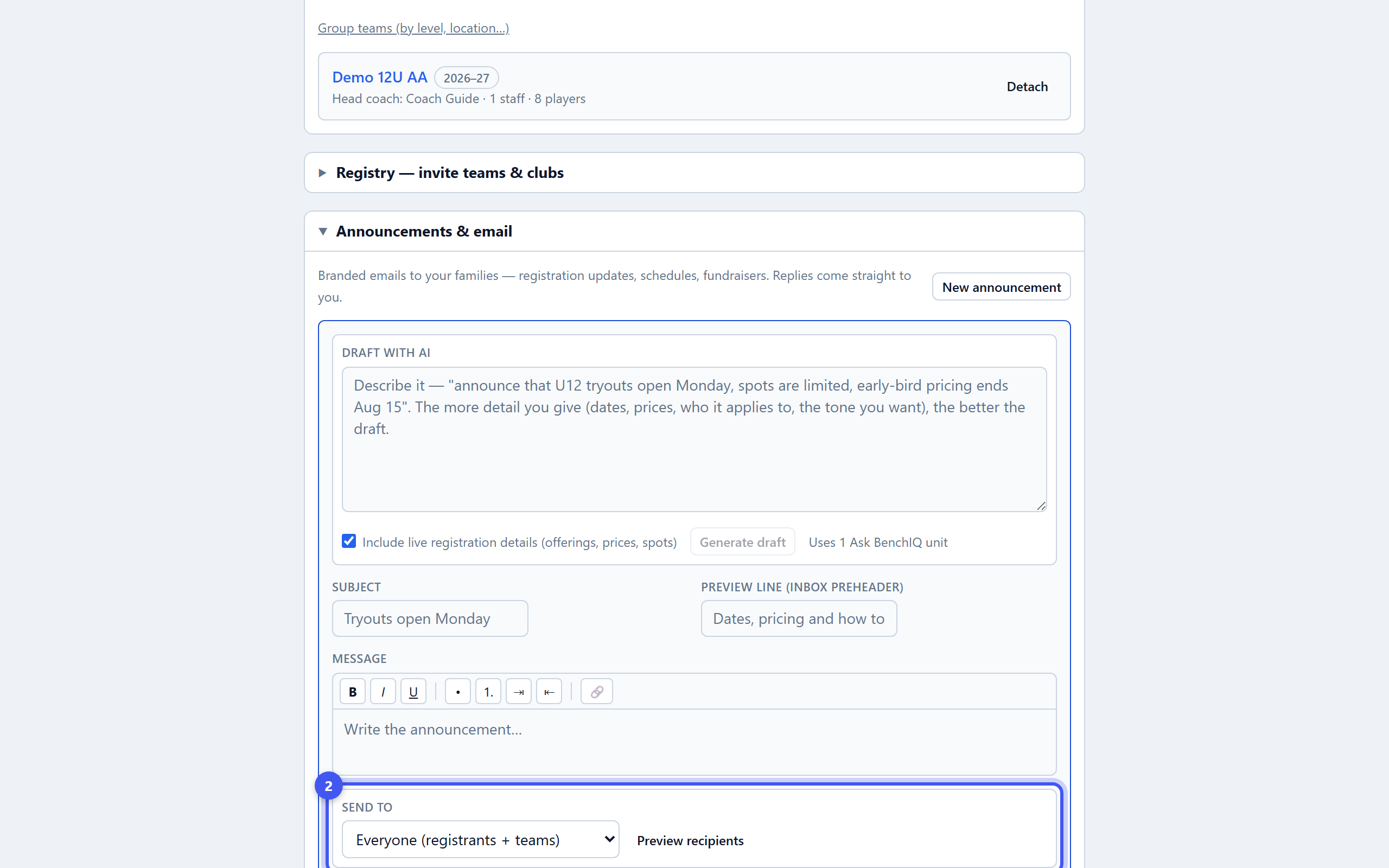
- 2Choose the audience
Send to: team members and families, coaches and staff, specific teams, registered families, everyone, or across member organizations for a district. Preview recipients shows exactly who and how many.
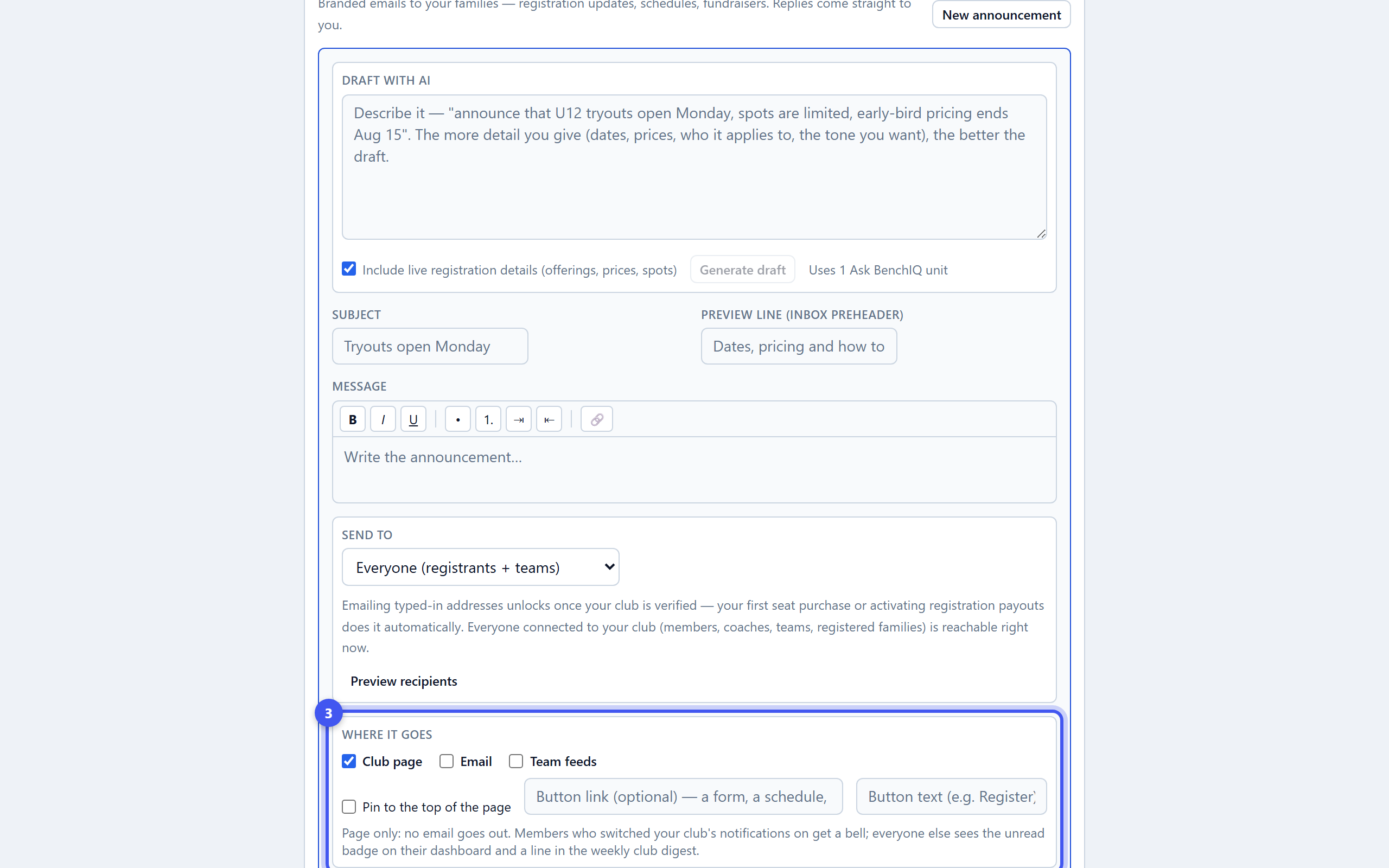
- 3Choose where it goes
Club page posts it to the Announcements section with an unread badge on members' dashboards; Email sends it; Team feeds drops it into every club team's hub with push. Pin it to the top until a date, and add a button link such as Register.
- 4Test, then send
Send test to me delivers the email to you first. Send, Publish (page only, no email) or set a time and Schedule. In setup mode only test emails go out until you Activate club.
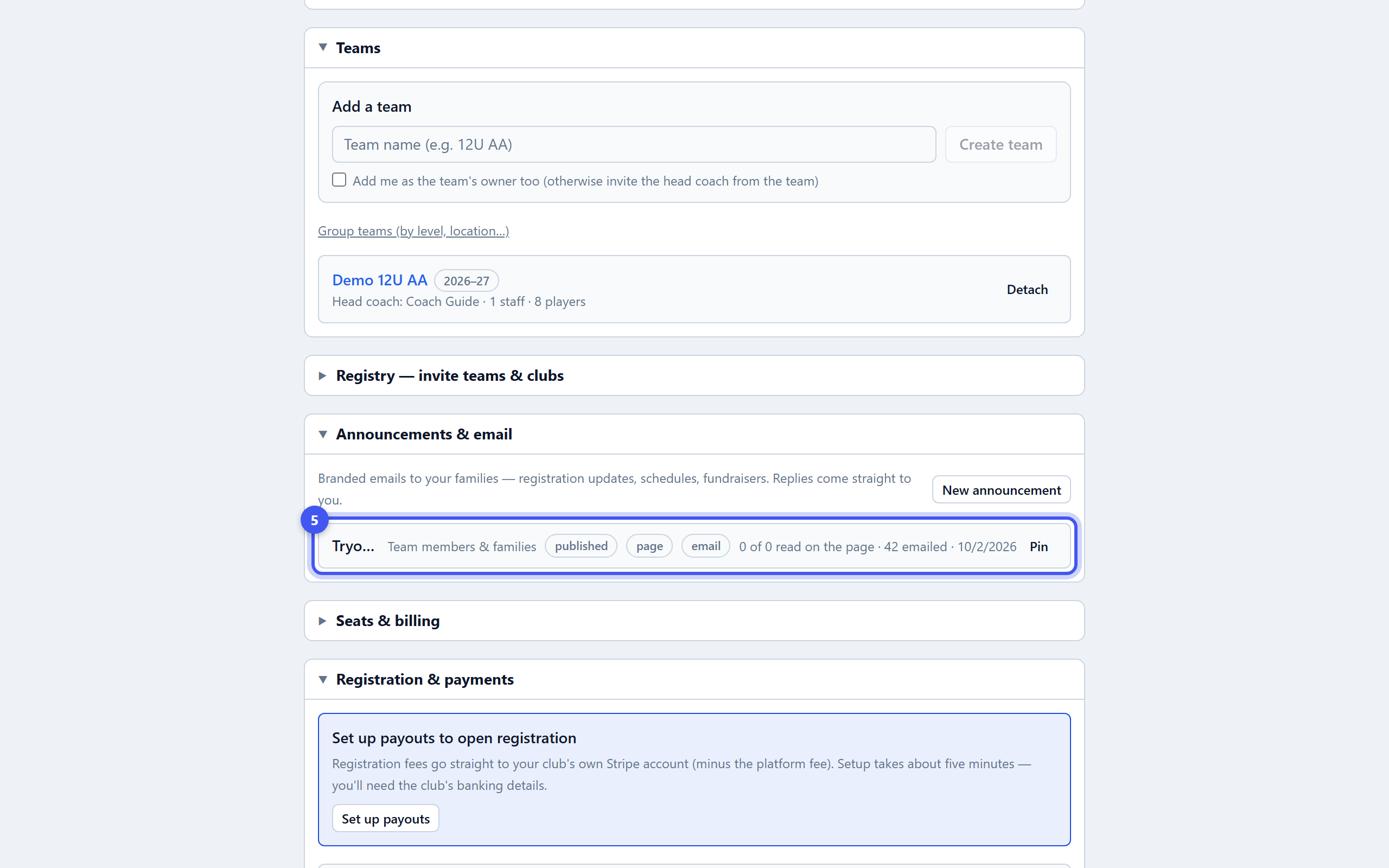
- 5See who read it
Each sent announcement shows how many read it on the page, how many were emailed, opened and clicked. Members who switched your club's notifications on also get a bell.